The numbers speak for themselves: global podcast listenership hit 840 million in 2025, and here’s the kicker. 73% of podcast listeners use search engines to discover new shows. That means there’s a direct connection between podcast content and web traffic that most site owners aren’t leveraging.
Adding a podcast feed to your WordPress site isn’t just about showcasing audio content. It’s about creating another channel to engage your audience, boost your SEO, and turn casual visitors into regular followers. Whether you’re running your own podcast or curating shows that align with your niche, displaying podcast content on your site can significantly increase the time people spend browsing your pages.
The best part? You don’t need a complicated setup to make that happen. With tools like WP RSS Aggregator, you can set up podcast feeds that automatically update your site with fresh content. Once it’s configured, the system does the work for you.
In this guide, we’ll walk you through everything you need to know about adding podcast feeds to WordPress. You’ll learn how to set them up, customize how they look, and use content curation to keep your audience coming back for more. Let’s get to it!
Why You Should Add a Podcast Feed to Your WordPress Site
If you want to keep visitors on your site longer and give them more reasons to come back, adding a podcast feed is one of the smartest moves you can make.
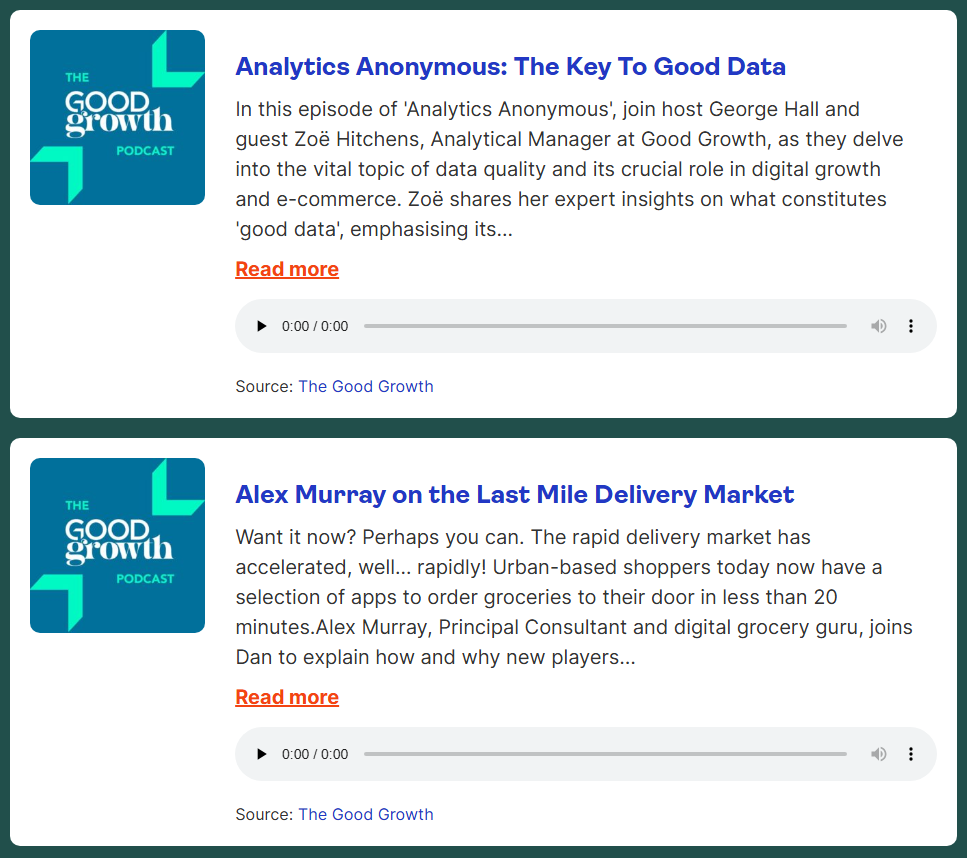
People consume content in different ways. Some prefer reading blog posts, others want to watch videos, and a growing number of users love listening to podcasts while they’re commuting, working out, or doing other tasks. By adding podcast content to your site, you’re catering to that audience.
But it’s not just about offering variety. Podcast feeds can actually help your site in several practical ways that directly impact your traffic and engagement.
- Promote your own podcast. If you’re already creating podcast content, your website is the perfect place to showcase it. When people discover your episodes through search engines, they’re more likely to become regular listeners. Plus, having your podcast on your site gives you complete control over how it’s presented and helps with SEO.
- Create new revenue streams. Podcast content on your site opens up monetization opportunities you might not have considered. You can promote affiliate products, mention sponsors, or offer premium content subscriptions. Even if you’re curating other people’s podcasts, you can build an audience that you can later monetize through other channels.
- Boost your SEO. Podcast episodes come with titles, descriptions, and show notes, all of which are great for search engine optimization. When you add podcast feeds to your site, you’re essentially adding fresh, keyword-rich content that can help you rank for relevant searches.
- Increase engagement and time on site. Audio content keeps people on your website longer. While someone might skim through a blog post in a few minutes, podcast episodes can hold their attention for 30 minutes or more. That’s great for your site’s engagement metrics.
- Curate valuable content for your audience. You don’t need to create your own podcast to benefit from podcast content. If you run a travel blog, you can curate the best travel podcasts for your audience. If you focus on marketing, you can aggregate episodes from top marketing shows. This positions your site as a go-to resource in your niche.
- Establish authority in your field. When you consistently share high-quality podcast content (whether your own or carefully curated shows), you demonstrate that you’re plugged into your industry. This helps build trust with your audience and positions you as someone who knows what’s worth listening to (and who’s worth listening to!).
- Build a community around your content. Podcast pages can spark discussions in comment sections and on social media. People love sharing interesting episodes they’ve discovered, which can drive more traffic back to your site.
- Diversify your content strategy. Not everyone learns the same way. Some people prefer reading, others like watching videos, and many enjoy listening to podcasts while multitasking. By offering podcast content alongside your other material, you’re catering to different content consumption preferences.
The bottom line is that podcast feeds can help you engage your audience, improve your SEO, and create new opportunities for growth – whether you’re a podcaster yourself or someone who wants to curate the best audio content for your visitors.
Embedding a podcast RSS feed on your WordPress site lets you provide easy access to your episodes and bolsters your site’s content variety. Let’s explore how to do this using the WP RSS Aggregator plugin.

WP RSS Aggregator is a robust WordPress plugin tailored for content import and display. Here are some of its standout features:
- Unlimited podcast sources. You can import content from as many podcast feeds as you want. Whether you’re showcasing your own podcast or curating shows from across your industry, there’s no limit to how many sources you can add.
- Automatic audio player integration. When you import podcast episodes, WP RSS Aggregator automatically includes audio players so visitors can listen directly on your site. No need to send people elsewhere to listen to an episode.
- Feed to Post conversion. This feature turns each podcast episode into its own WordPress post, which is great for SEO. Each episode gets its own URL, can be categorized and tagged, and shows up in your site’s search results. It’s available with Plus plans and above.
- Customizable displays. You control how podcast content looks on your site. The plugin offers different layout options and you can customize each display to match your website’s style.
- Smart filtering and automation. Set up keyword filters to automatically import only the episodes that are relevant to your audience. You can also schedule when content gets imported and published.
- Folder organization. Group related sources in folders to keep everything organized. This is especially helpful if you’re curating content from multiple shows or different topics.
- Built-in attribution. The plugin automatically credits original creators and links back to source content, which keeps you on the right side of content curation best practices.
Adding a podcast feed to your WordPress site: A step-by-step guide
Now, let’s dive into a step-by-step tutorial to embed your podcast feed. First, make sure that WP RSS Aggregator is installed and activated on your WordPress site.
Next up, identify the RSS feed you want to import. In this case, you’ll want to find the RSS feed for a podcast. You can typically find your RSS feed source at https://yourpodcasturl.com/feed/ or /rss. If you’re using a hosted podcast platform, it may automatically generate an RSS feed for you, so check out the platform’s documentation.
For this tutorial, we’re going to use this podcast RSS feed: https://feeds.99percentinvisible.org/99percentinvisible
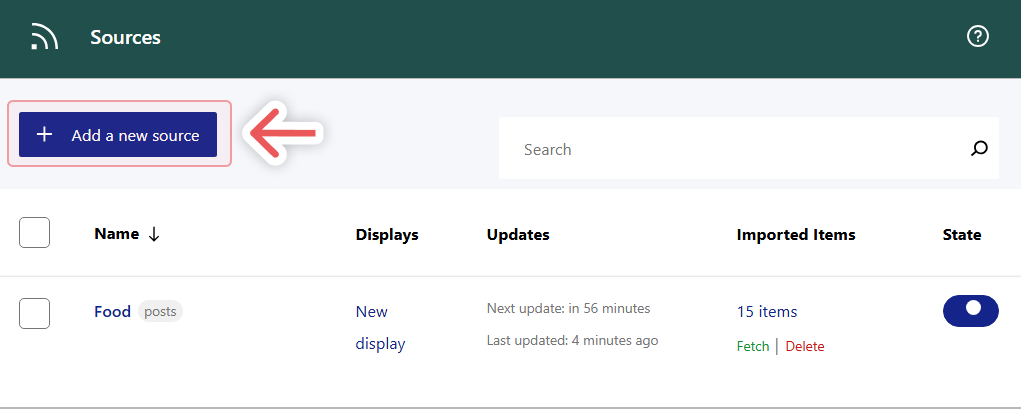
Adding a source in WP RSS Aggregator works the same regardless of what kind of content it contains. To get started, go to Aggregator > Sources and click on Add a new source:
On the next page, type or paste the RSS feed URL in the Source Link field under the Details tab. WP RSS Aggregator will automatically fetch a preview of the feed’s items to the right of the screen:
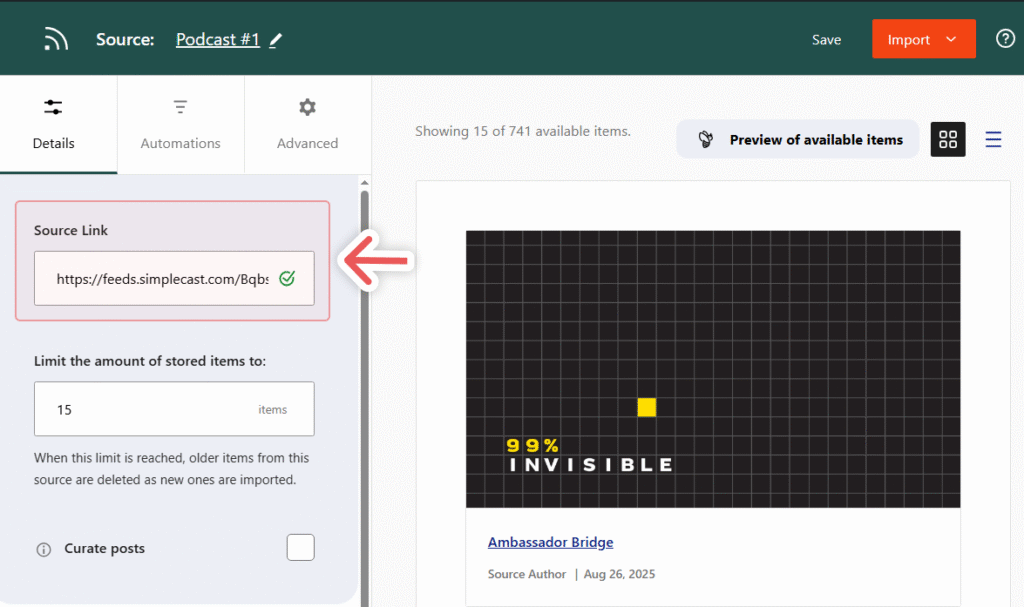
Note that the preview won’t show the player for the podcast episodes. For that, we’ll need to set up a “display”, which is a collection of one or more feeds, customized to look how you want, that you can place on your website.
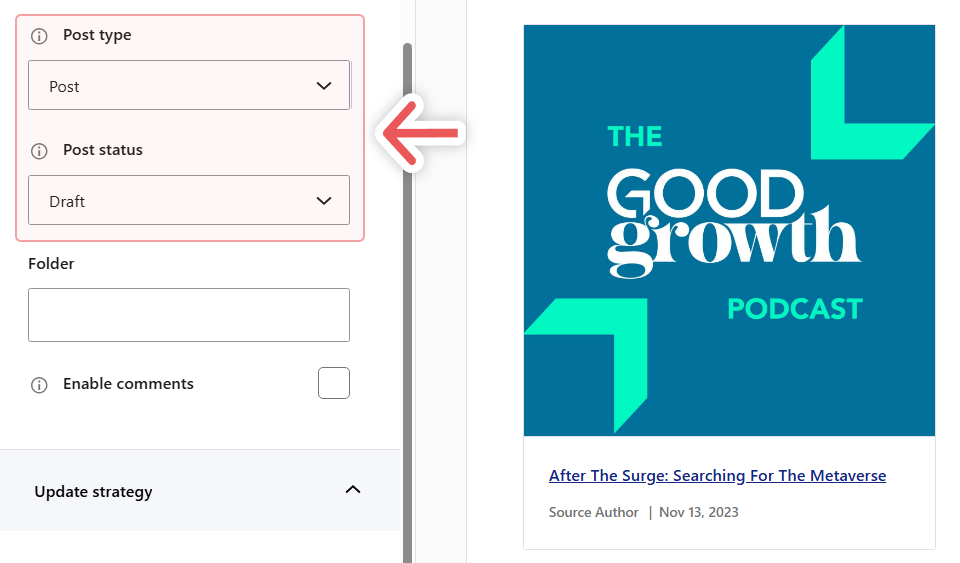
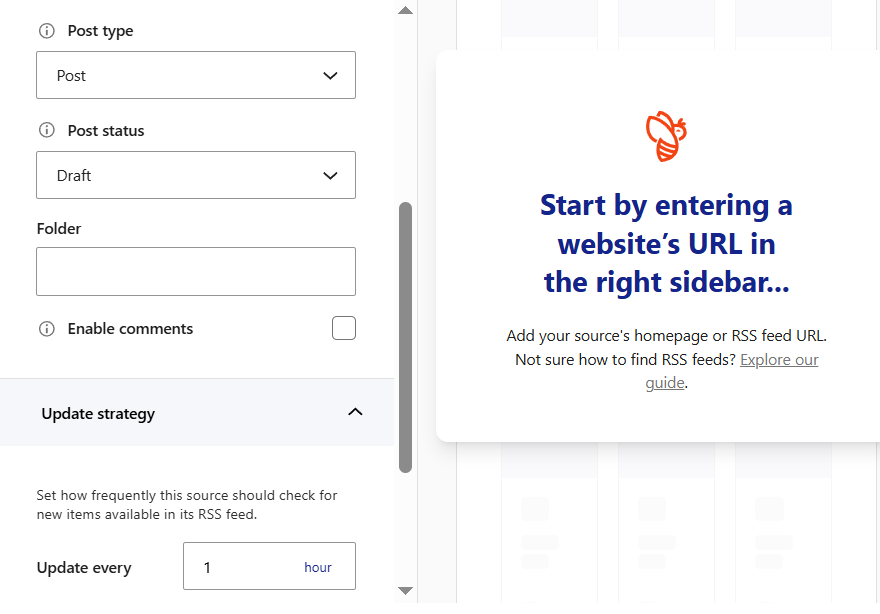
You can decide how many podcast items the plugin should import by changing the value in the Limit the amount of stored items to field. If you scroll down to the Post type section, you can decide how to save imported items (as posts or custom post types) and whether to publish items automatically or save them as drafts for your approval:
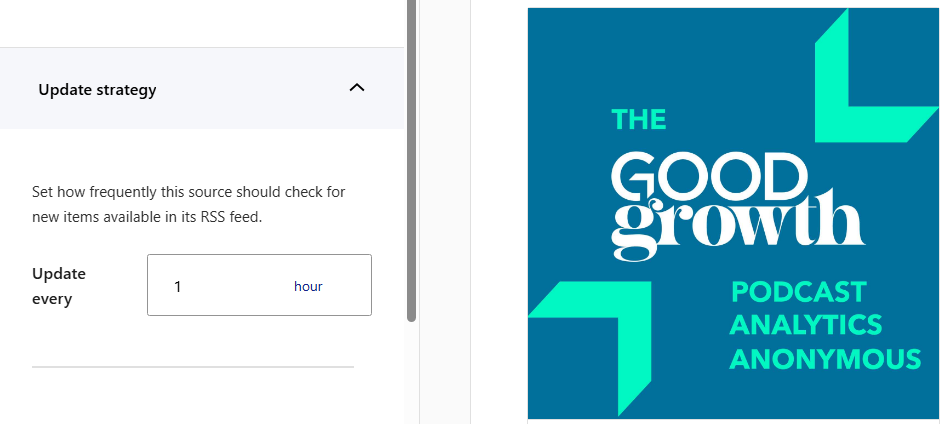
WP RSS Aggregator also lets you configure how often it should check feed sources for new content. By default, the plugin checks every hour, but you can change this setting by changing the value under Update strategy > Update every:
Before moving on to displays, consider spending some time looking into how automations work. WP RSS Aggregator enables you to set up automated filters that let you decide what content to import, or not import, into your website.
You can use filters to get full control over what podcast episodes to import. For example, if you’re importing content from third-party podcasts, you might want to skip any episodes with titles including words like “promotional” or “offer”, to avoid showing your visitors promotional content.
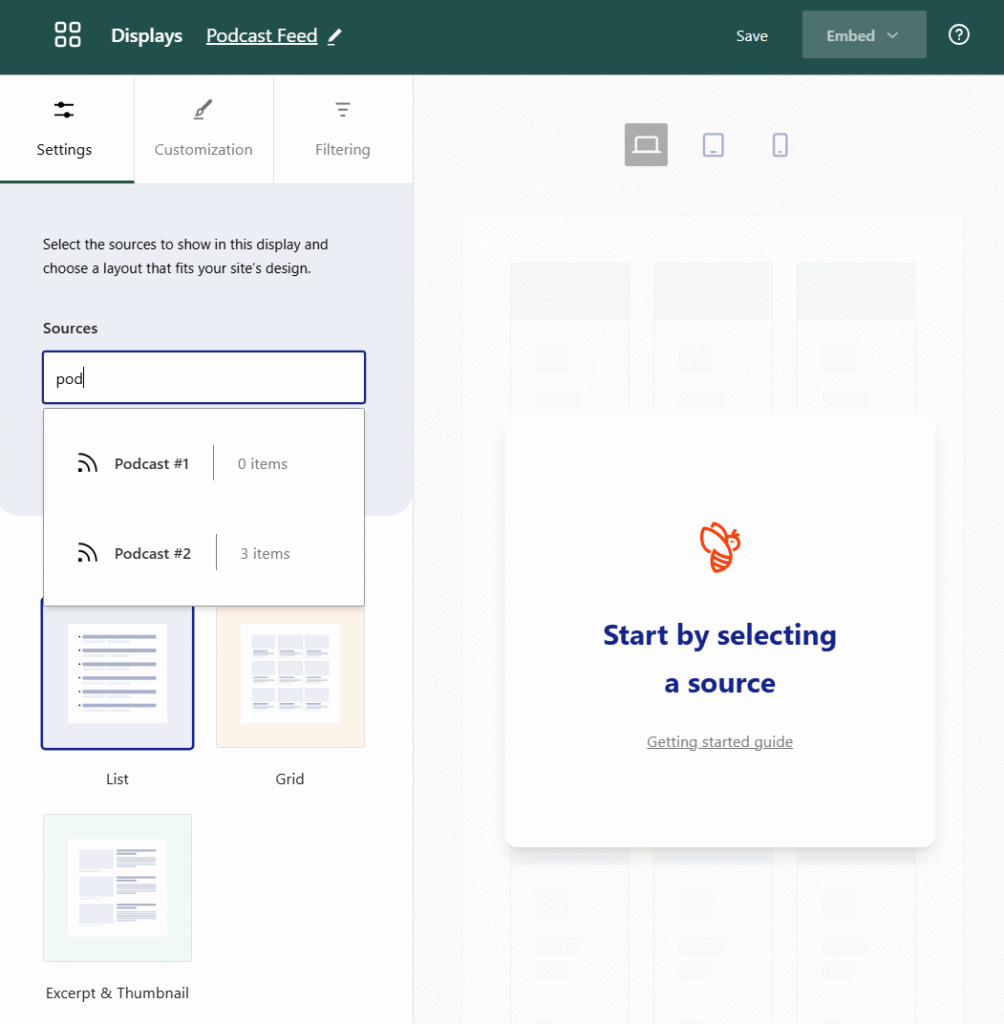
Save your source and click on Import to get some podcast episodes imported to your site. Now head over to Aggregator > Displays and click on Create a new display. In the next screen, look for the Sources field under the Settings tab. You can use this field to select any of your existing sources and add them to the display:
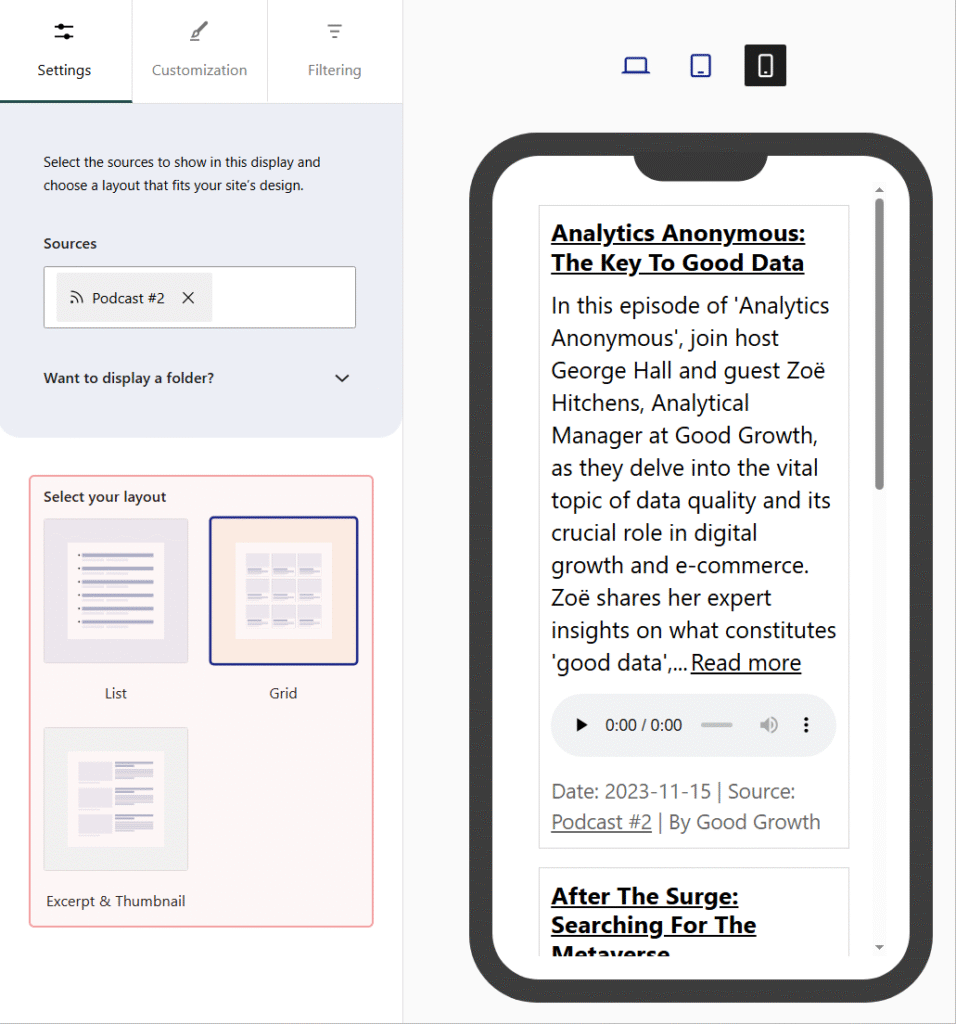
After selecting one or more sources, look for the options under Select your layout. Select a layout for the display and look at how the preview to the right changes:
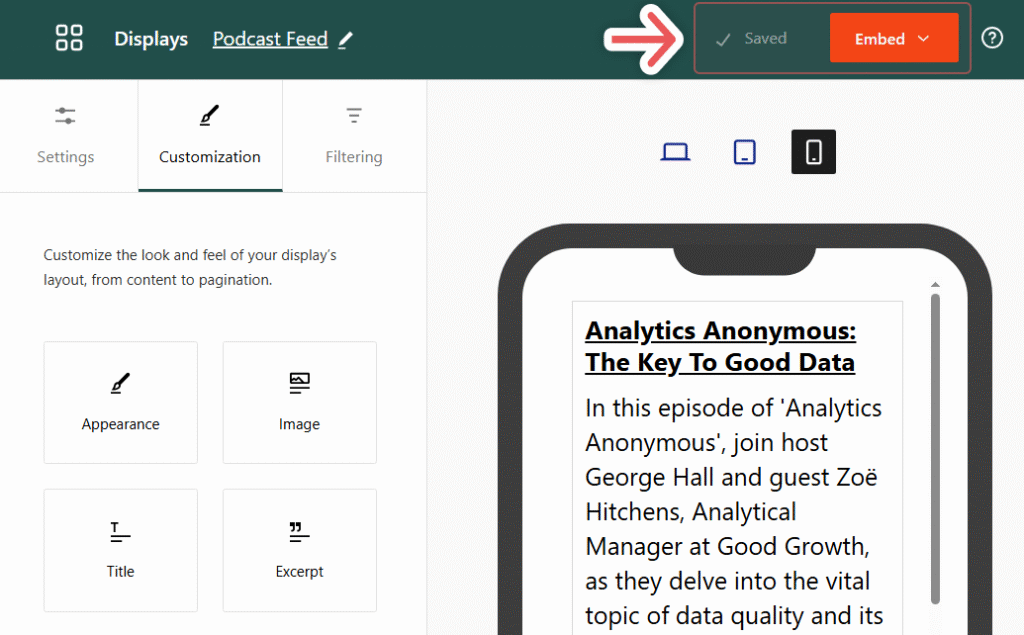
Selecting a layout is just the first step. You can also head over to the Customization tab, where you get access to even more options to change how your podcast feed will look once you place it on your website:

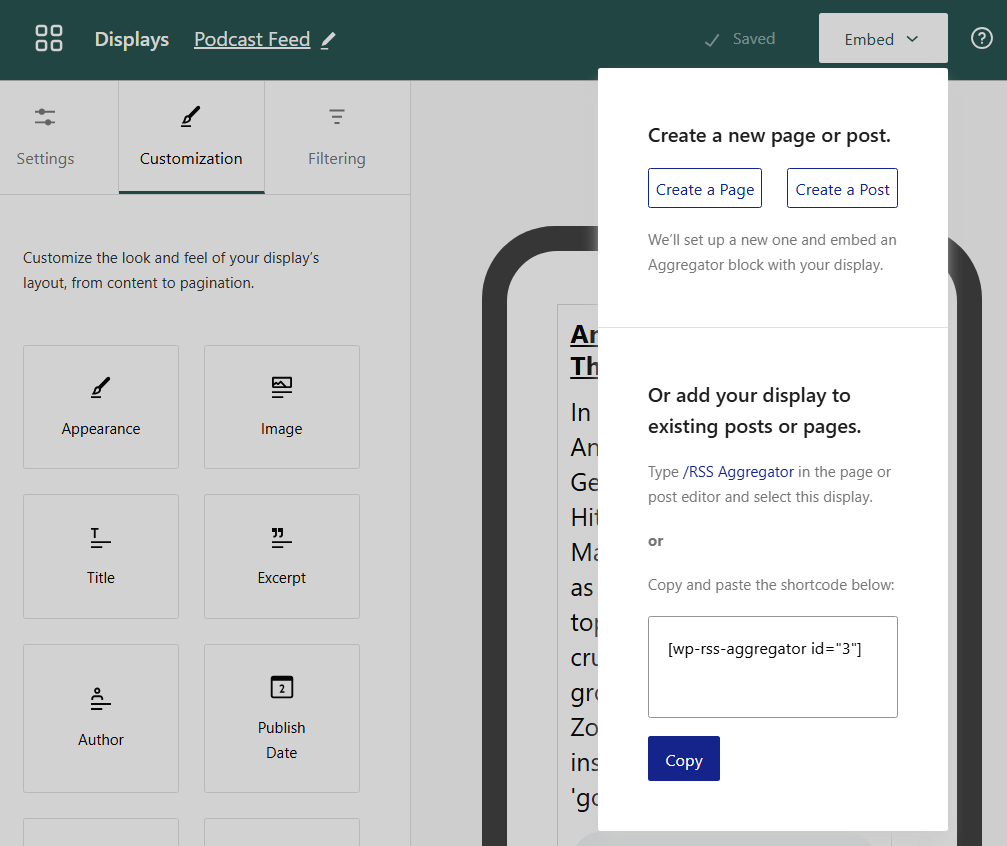
You can read more about displays and their customization options in our documentation. When you’re ready to put the display in action, click on Save in the top-right corner of the source editor and then click on Embed:
WP RSS Aggregator will prompt you to create a new post or page with the feed embedded (as a block). You can also add the feed anywhere on your site using a custom shortcode or place it using a block:
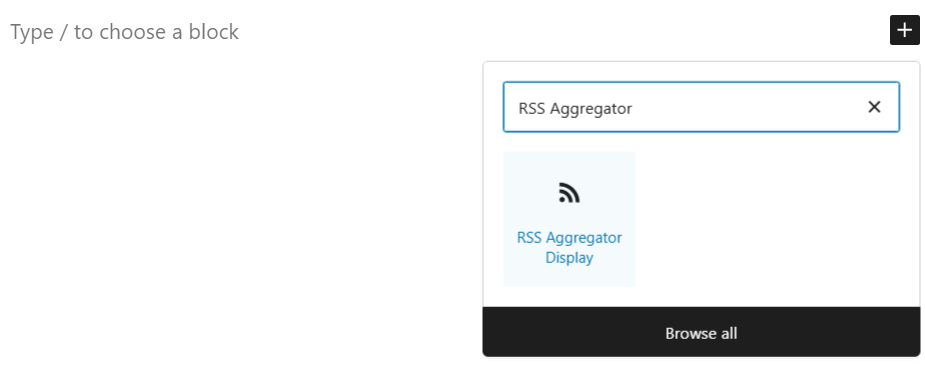
Here’s how to find the WP RSS Aggregator block if you’re using the Block Editor:
And here’s how a podcast feed (without images) looks in the Block Editor:
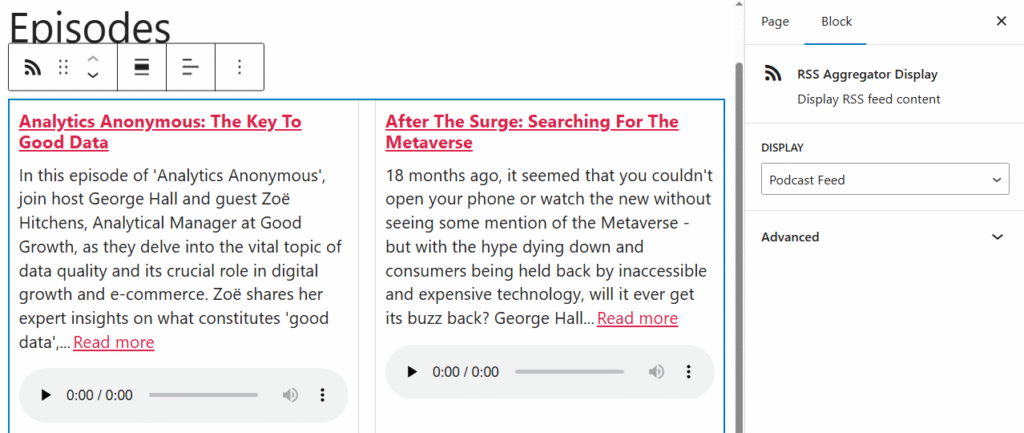
That’s a WP RSS Aggregator display. If you set up your podcast feed source correctly, the display will update automatically and show new episodes as they go live.
With these steps, you will have transformed your WordPress site into a podcast-friendly platform, creating a convenient space for listeners and enhancing your site’s content diversity.
How do I create posts for each podcast episode on WordPress?
If you’re a podcaster using WordPress, it can be incredibly valuable to have each of your podcast episodes live as its individual post on your site. This not only makes the content accessible and organized but also optimizes your site for search engines, as each episode gets its unique URL, title, and metadata.
Note: You need to have the WP RSS Aggregator Feed to Post feature, available with the Plus plan or higher, to follow along with this tutorial.
If you have the correct license, WP RSS Aggregator will show the Post option under Post type when you’re configuring a source. This tells the plugin to save each imported episode as an individual post in WordPress:
Once you’ve configured all settings to your liking, save the feed source. To ensure everything is in order, verify that the podcast episodes have been correctly imported by heading over to the Posts tab in the dashboard and seeing if there are new entries for them.
Setting up podcast feeds in WordPress can feel confusing if you’re new to it. Here are the most common questions we get about WordPress podcast RSS feeds.
A podcast RSS feed is a file that contains information about your podcast episodes, including audio files and descriptions. A lot of podcast hosting providers generate this feed automatically when you upload episodes.
You have two options: use a podcast hosting provider (like Castos, Podbean, or Anchor) that creates the feed automatically. You can also set up a self-hosted podcast website on WordPress, but this requires more work.
Yes, WordPress automatically creates RSS feeds for your content. If you publish podcast episodes as regular blog posts, you can find your feed at yoursite.com/feed/.
Where can I find my podcast’s RSS feed in WordPress?
If you’re publishing episodes as regular posts, your RSS feed is at yoursite.com/feed/. If you’re using a custom post type or specific category for podcasts, you’ll need to check the WordPress codex for the exact URL format.
Try appending /feed or /rss to the end of your podcast’s URL. If that doesn’t give you access, check your provider’s documentation for guides on how to access your show’s RSS feed.
Can I add other people’s podcasts to my WordPress site?
Absolutely. With WP RSS Aggregator, you can curate podcast episodes from other creators and display them on your site. The plugin automatically includes audio players so visitors can listen without leaving your site.
Use the free podcast RSS feed search tool by Castos. Just enter the podcast name and it’ll give you the feed URL.
People consume content differently, and by adding podcast feeds to your WordPress site, you’re giving visitors another reason to stick around and come back.
The benefits are clear: better SEO from fresh, keyword-rich content, longer time on site from audio content, and the opportunity to establish yourself as a go-to resource in your niche. Whether you’re promoting your own podcast or curating the best shows for your audience, podcast content can make a real difference in your site’s performance.
The key is using the right tools to make it happen without a lot of technical headaches. WP RSS Aggregator handles all of the heavy lifting. It imports podcast content automatically, includes audio players, and lets you customize how podcast feeds look on your site.
Get WP RSS Aggregator today and unlock a world of content possibilities, seamlessly integrating your podcast feed and broadening your reach!